Visualize VulsRepo and Integrating Alert to Webhook Slacks

Written by
Admin
Admin
Updated on
March 17, 2025
March 17, 2025
VulsRepo is a web-based visualization tool for Vuls, a vulnerability scanner for Linux-based systems. It helps users analyze and manage vulnerability scan severity and CVE results in an easy-to-use web interface showing like an excel pivot scan.
I assumed that you have already installed vuls on your system, if you havent, you can follow this step https://blog.sandyputu.my.id/install-an-agent-less-vulnerability-scanner-using-vuls to install vuls repo you can follow these steps
Move to directory /opt/vuls and generate a report format to json
cd /opt/vuls/
vuls report -format-json
now move to working directory /opt to download vulsrepo source code using gitclone
cd /opt/
git clone https://github.com/ishiDACo/vulsrepo.git
then you can move to directory /opt/vulsrepo/server/ to change the default configuration of vulsrepo-config.toml
cd /opt/vulsrepo/server/
cp vulsrepo-config.toml.sample vulsrepo-config.toml
nano vulsrepo-config.toml
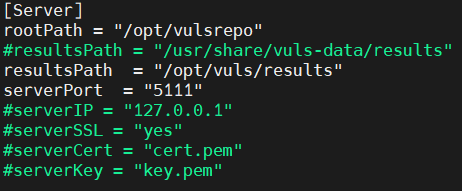
change the configuration of rootpath to /opt/vulsrepo and resultpath /opt/vuls/results in /opt/vulsrepo/servervulsrepo-config.toml, you can fill serverIP with your Public IP/Local IP
[Server]
rootPath = "/opt/vulsrepo"
resultsPath = "/opt/vuls/results"
serverPort = "5111"
serverIP = "your server ip"
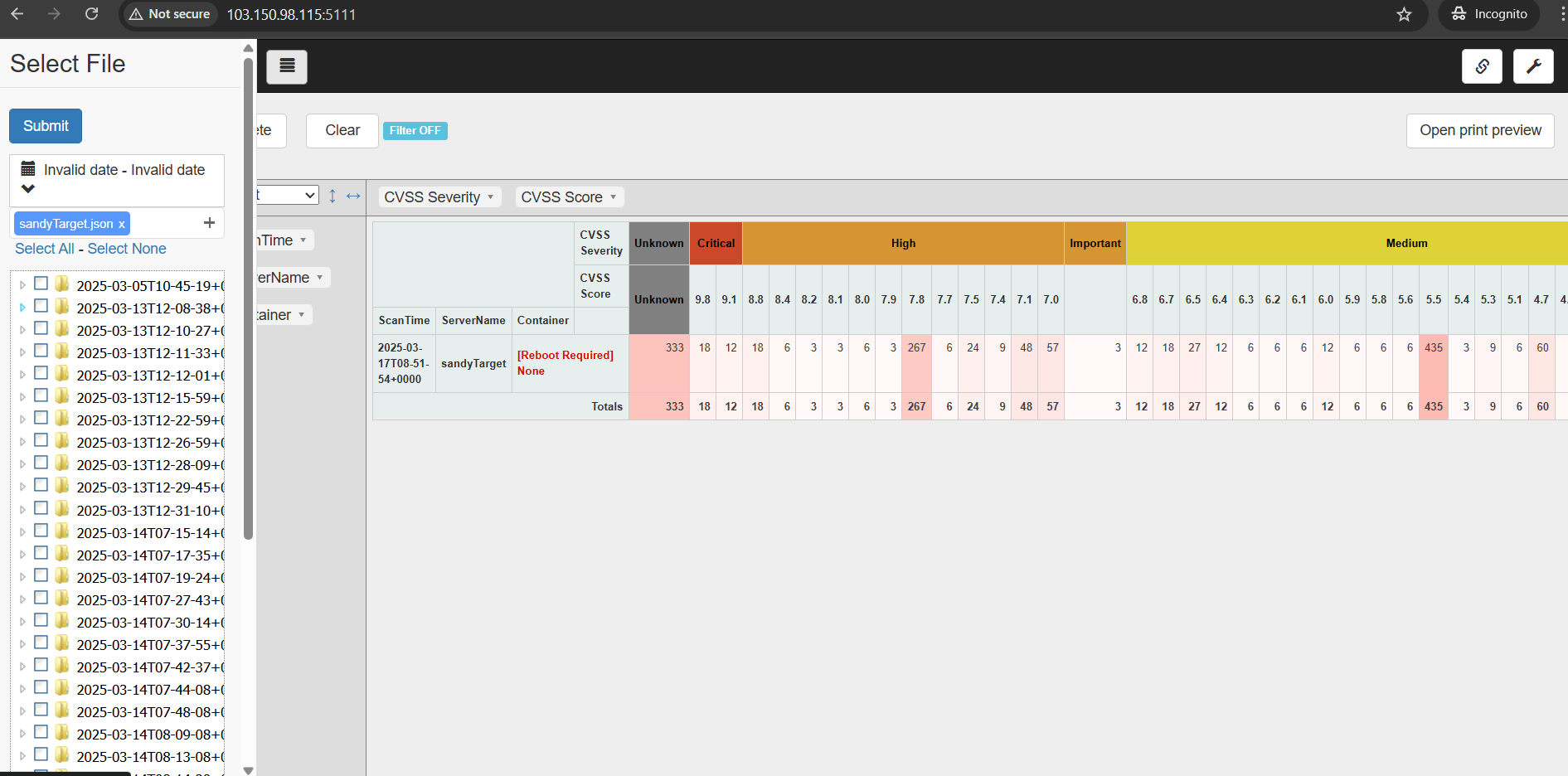
the last thing, now you can run ./vulsrepo-server to start the dashboard visualization, here is the result
Slack is a social media conversation like discord but slack mostly used for professional, vuls also able to integrate with slack, by sending report to slack to see all the vuln and CVE's, we will config vuln so we can see the report through slack.
first you can access this link https://api.slack.com/apps?new_app=1 to create an app on slack, and make sure i have created a slack account.
Create an App > from manifest > Select workspace > Next
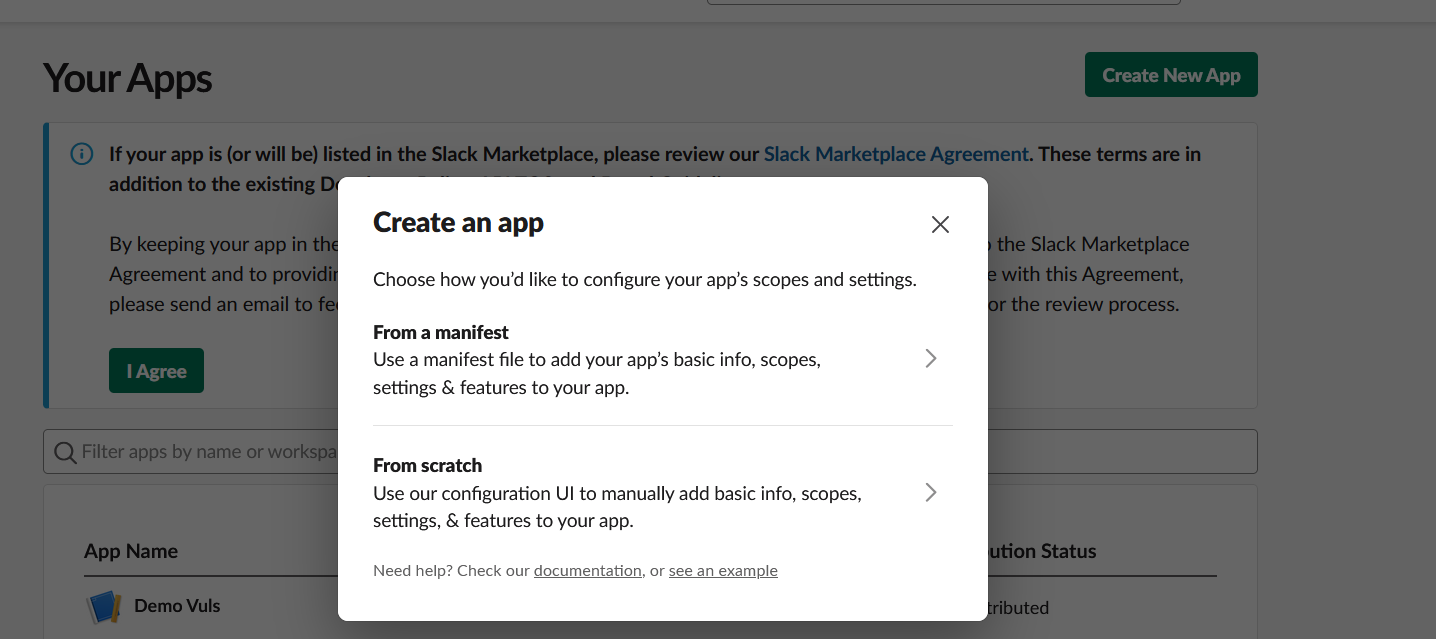
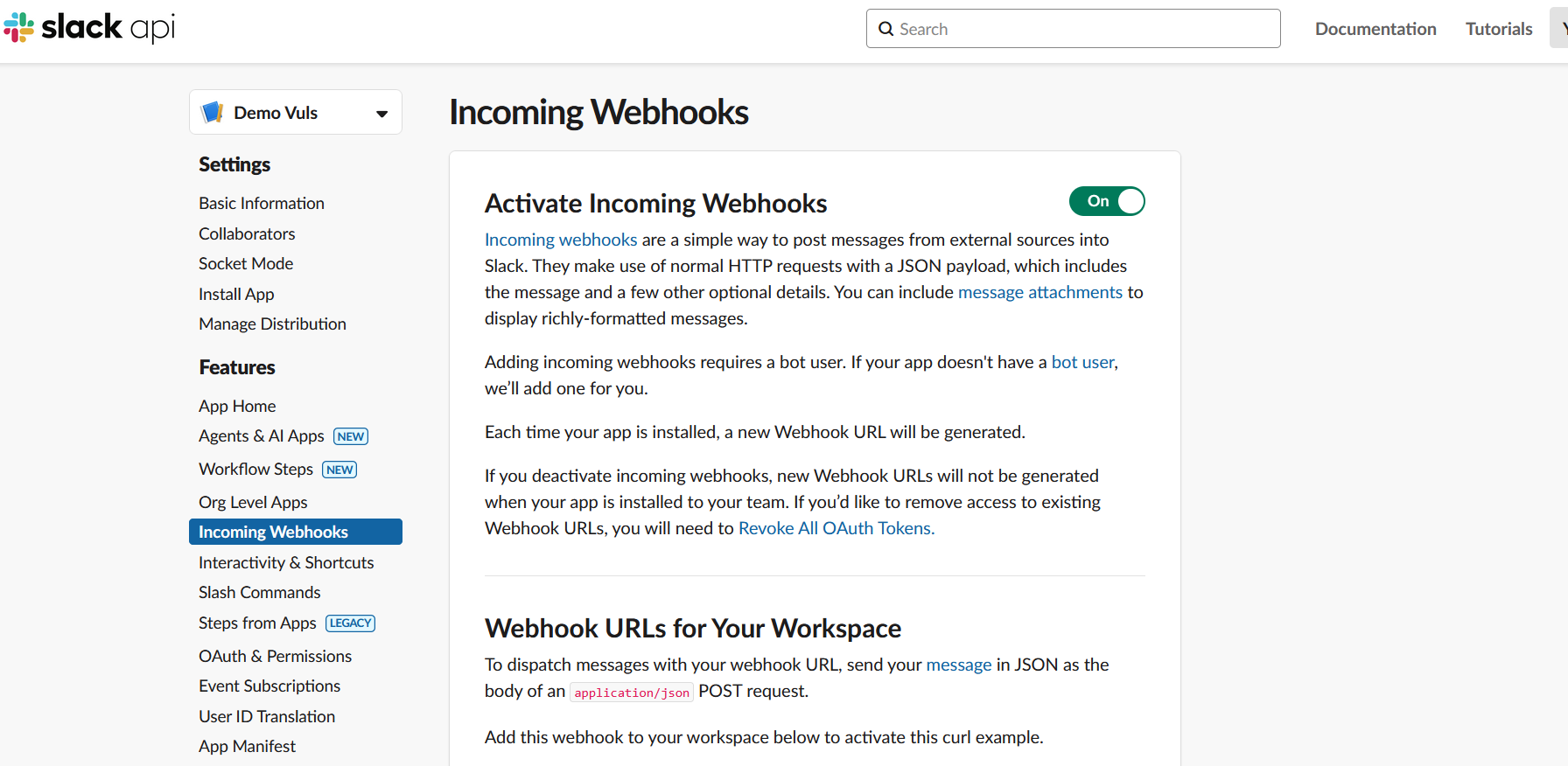
Once you created an app, now enable incoming webhook.
go to Incoming Webhooks > Activate Incoming Webhooks > enable
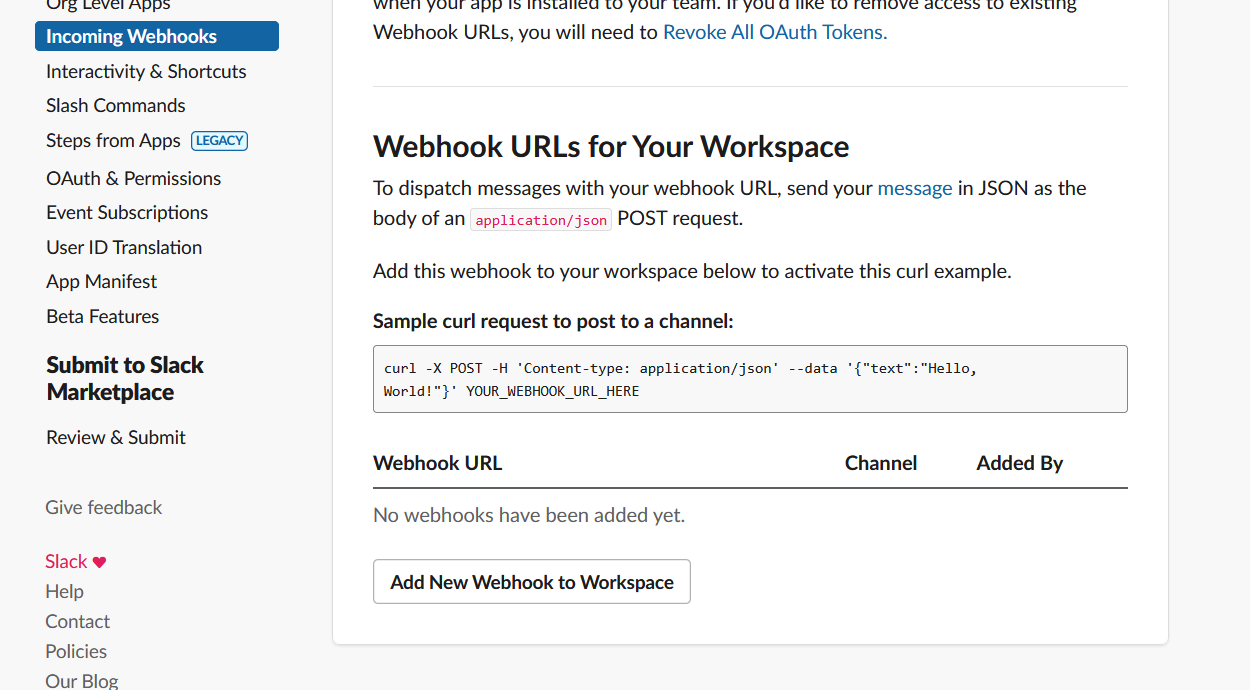
Scroll down to the bottom, you can find wbhook url, since your webhook url not added yet, you can Add New Webhook to Workspace
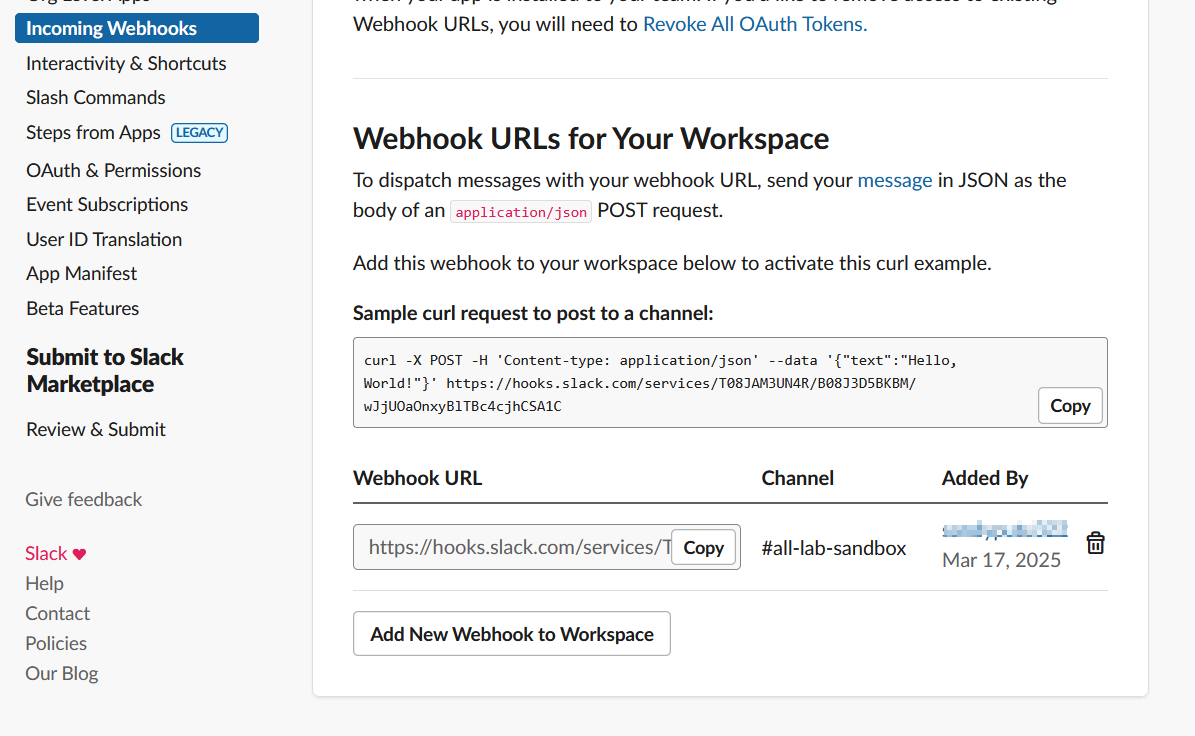
Once you have added the webhook, it will shown a Webhook URL
then you can open the terminal on your vuls, go to /opt/vuls/config.toml to add the lines.
nano /opt/vuls/config.toml
add this line to the config, make sure you fill the config based on your slack app
[slack]
hookURL = "https://hooks.slack.com/services/T08xxxxxxxxx/wJxxxxxxxxxxxx"
channel = "#your_channel"
authUser = "your_auth_user"
#notifyUsers = ["@username"]
And the last one, you can use this command to send report to slack
vuls report -to-slack
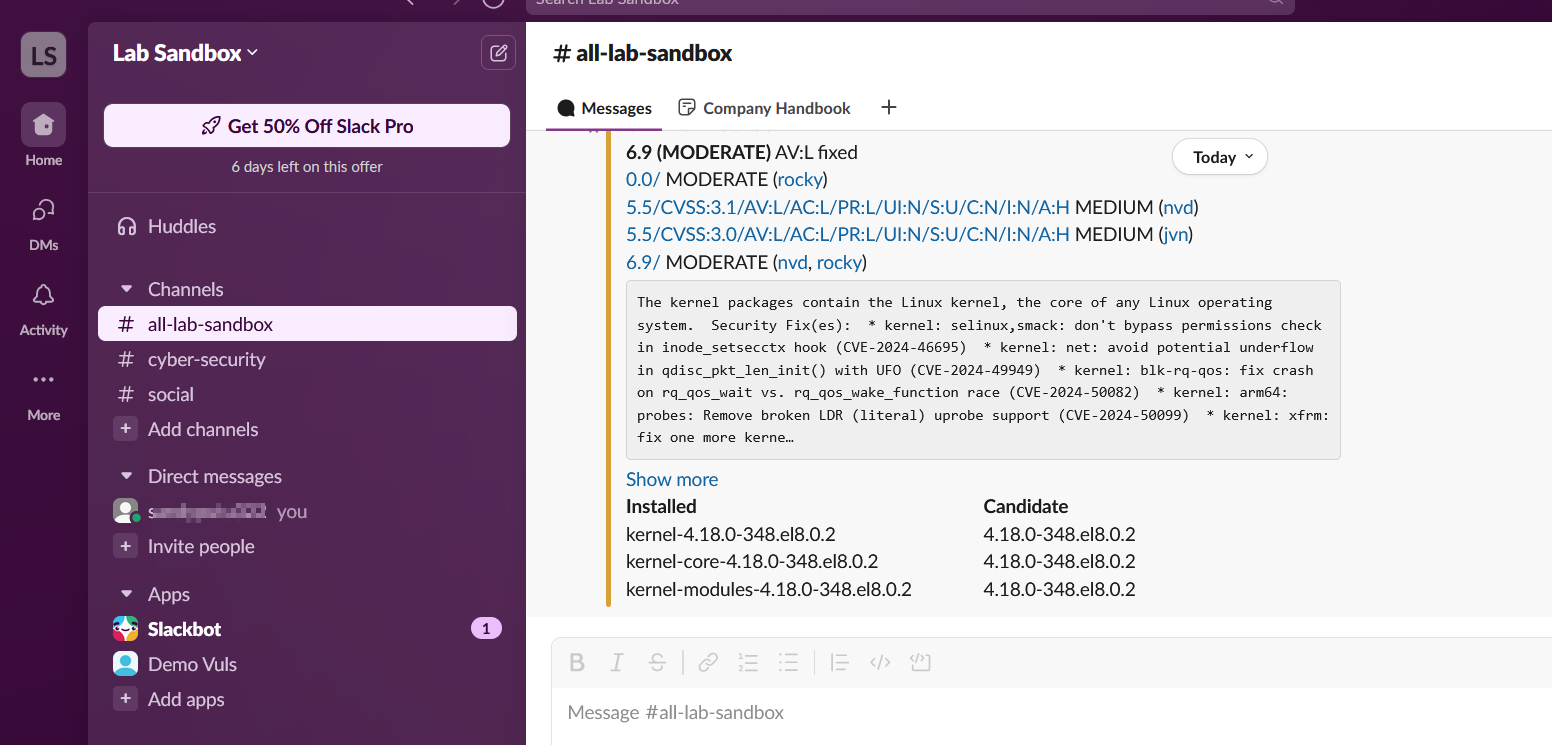
here is the result